An offer is how you set up what your employees can give and where, and for what causes. Use it to:
- Fill your employee marketplace with volunteering opportunities.
- Invite non-profits to create opportunities that fit your needs.
- Local Needs Assessment: build a report on volunteering and non-profit needs in a specific area, cause or skills.
You can create as many offers as you like. All matching opportunities will be visible to employees. A broad offer works well for your employee volunteering marketplace. Targeted offers are useful when there isn’t an existing opportunity for what you want to give.
1. Start a new offer
- Log in to ActionFunder with your admin account.
- Click Volunteering in the left-hand menu.
- Open the Offers tab and click Create an offer.

2. Set your offer criteria
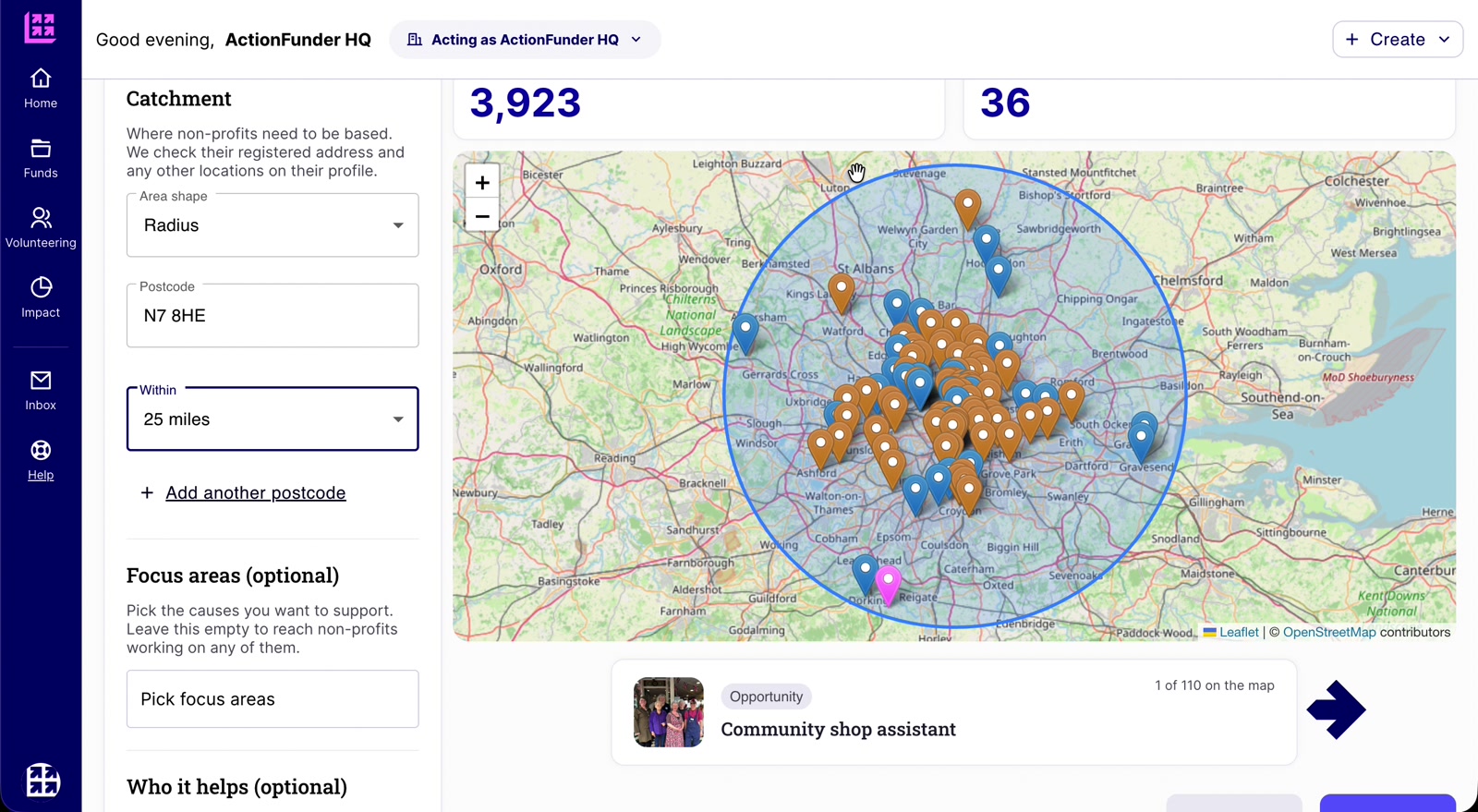
- The Non-profits and Opportunities counts update as you change your criteria.

Choose your catchment
- UK wide: any non-profit in the UK. Best for remote work.
- Radius: enter a postcode and a distance. Click Add another postcode to cover more than one location, for example if you have offices in Manchester and London.
- Local authority: pick one or more local authority areas.
- Remote opportunities: choose whether to include all remote opportunities, or leave out remote opportunities from non-profits outside the area where you want to make an impact.
- The map shows both non-profit and opportunity locations, including every location a non-profit operates from (if they’ve updated their profile).
- Pink pins are opportunities that can be done remotely, but show where the non-profit is based.

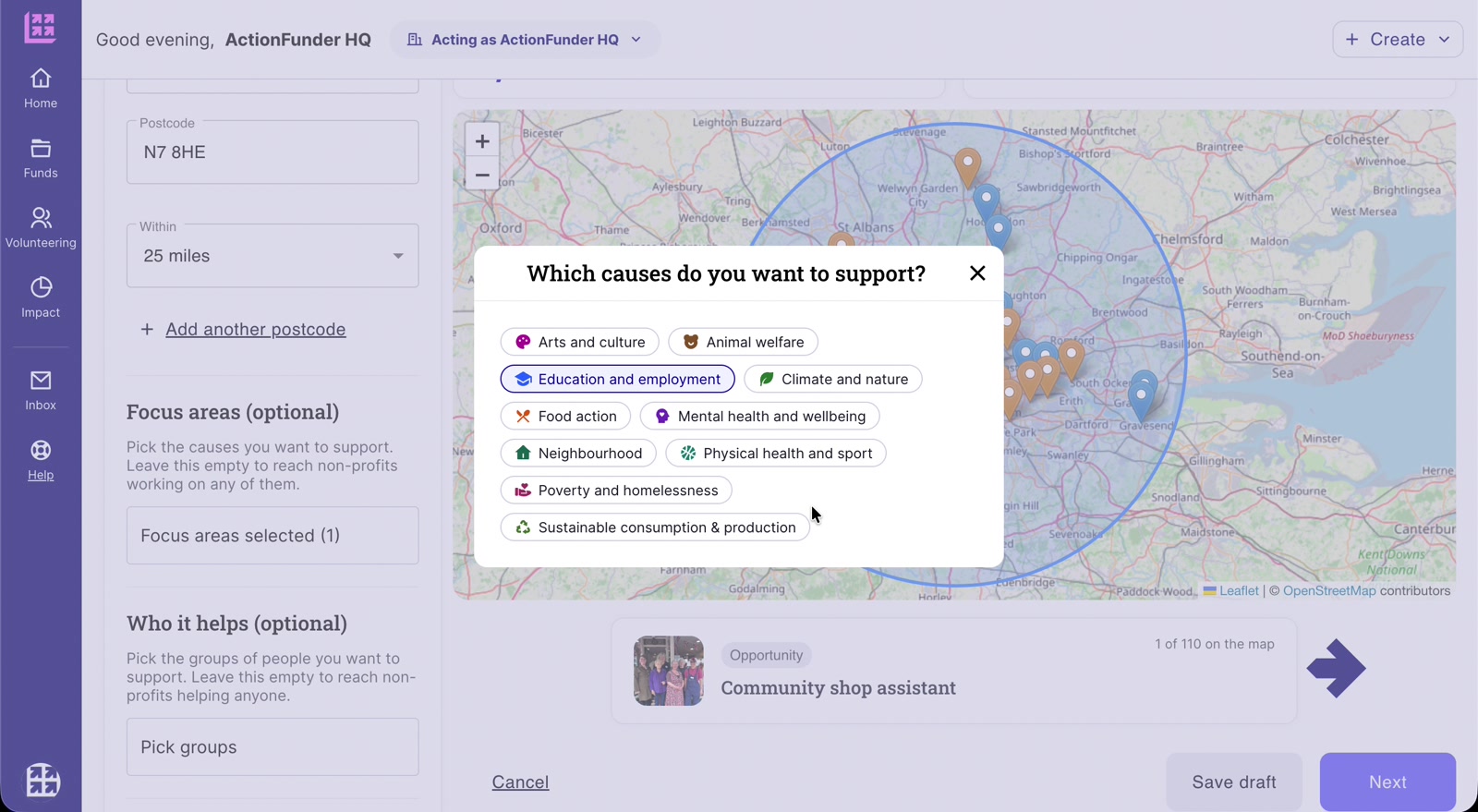
Narrow by cause (optional)
- Focus areas: the causes you want to back.
- Who it helps: the beneficiaries of people you want to reach.
- Each choice reduces the number of matching non-profits and opportunities. Leave these blank for the widest reach, especially for your employee marketplace.
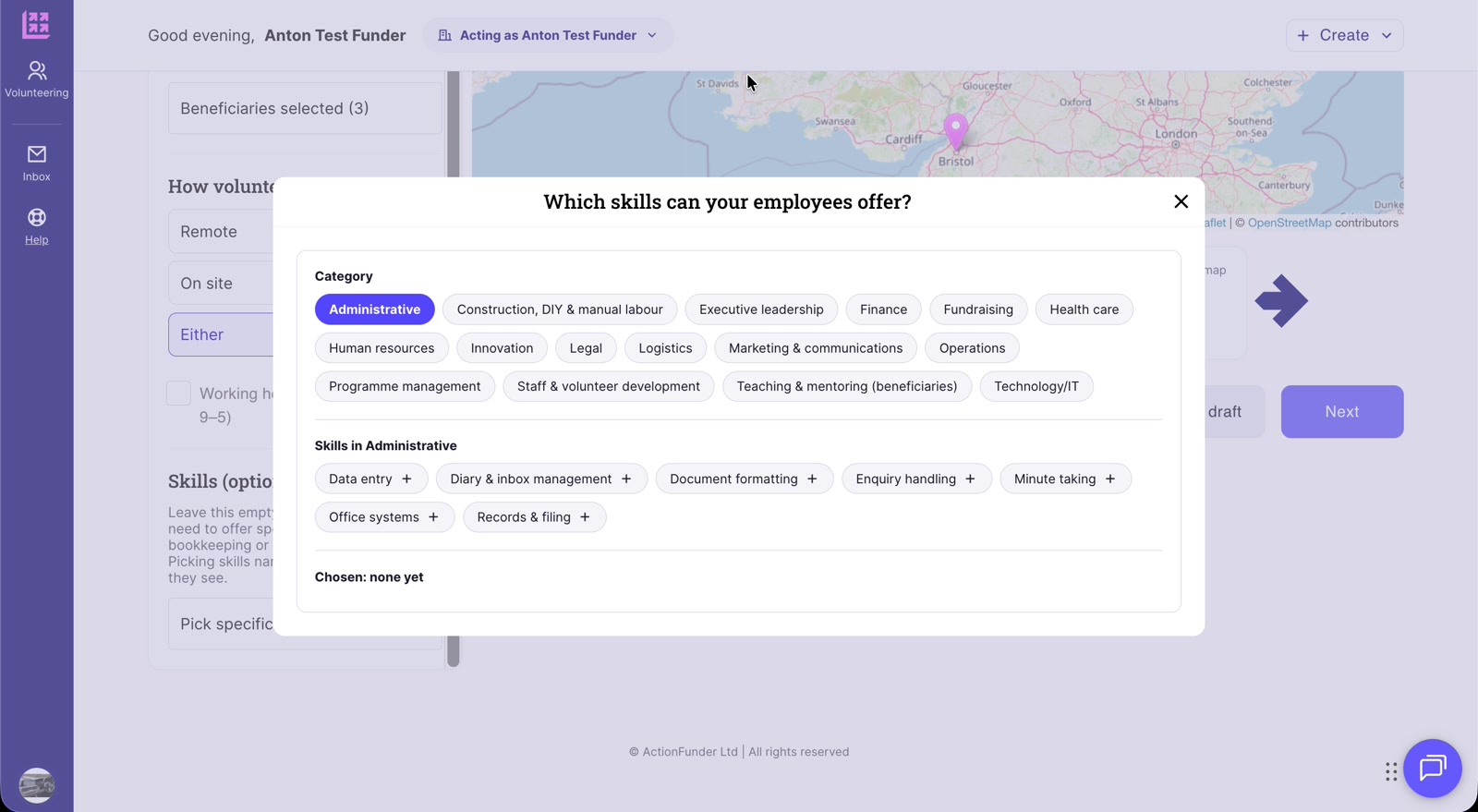
Set how volunteers can work
These settings filter opportunities only, not non-profits.
- Choose Remote, On site or Either.
- Tick Working hours only (Mon to Fri, 9 to 5) if volunteering must happen in office hours.
- Skills (optional): leave this empty unless you want to offer specific skills. Picking skills narrows the opportunities your employees see.

Download the full list
- The map shows up to 110 results, with opportunities shown first.
- Click Download your data for an Excel spreadsheet of every matching non-profit and opportunity.

3. Save a draft (optional)
- Click Save draft at any point. You’ll find it under Offers > Draft.
- Drafts aren’t visible to anyone and nobody is notified.
- Handy for a needs assessment: see which non-profits and opportunities sit within your criteria before you publish.
- Click Continue editing to pick it up again.

4. Add your offer details
- Click Next, then describe what you’re offering and what you hope it achieves (up to 2,500 characters).
- Include the skills your people bring and the type of volunteering you’re interested in. More detail means better responses.
- Tick Don’t email matching non-profits if you only want to fill your marketplace. Matching opportunities still reach your employees, but non-profits won’t be notified of your offer.

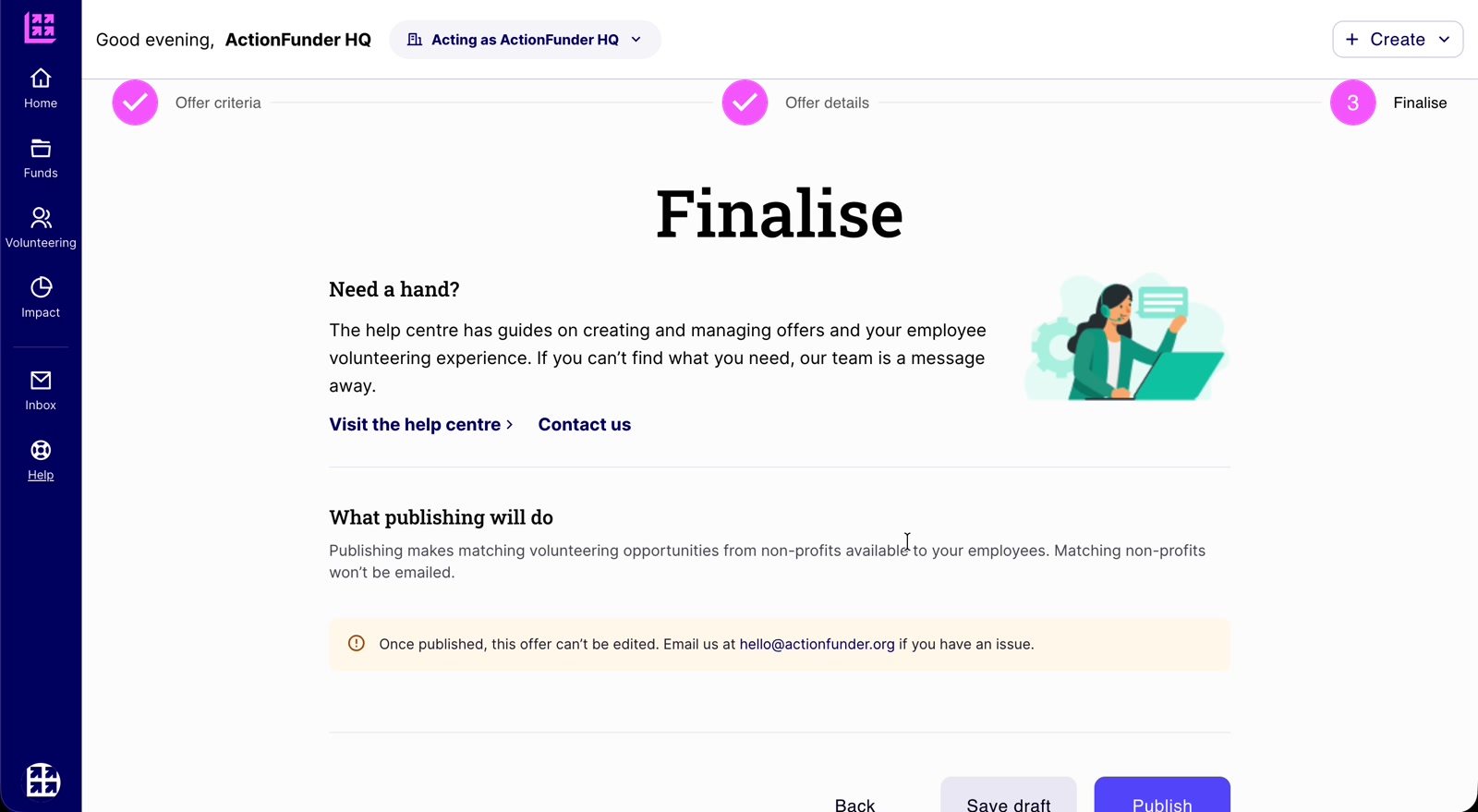
5. Finalise and publish
- Check What publishing will do, then click Publish.
- Matching opportunities appear in your employees’ marketplace once they sign in.
- If you chose to email non-profits, they get a link to your offer and can create opportunities that match it.
- Currently, you can’t edit an offer once it’s published. Email hello@actionfunder.org and we’ll make changes for you. Self-serve editing is coming soon.
6. View your live offer
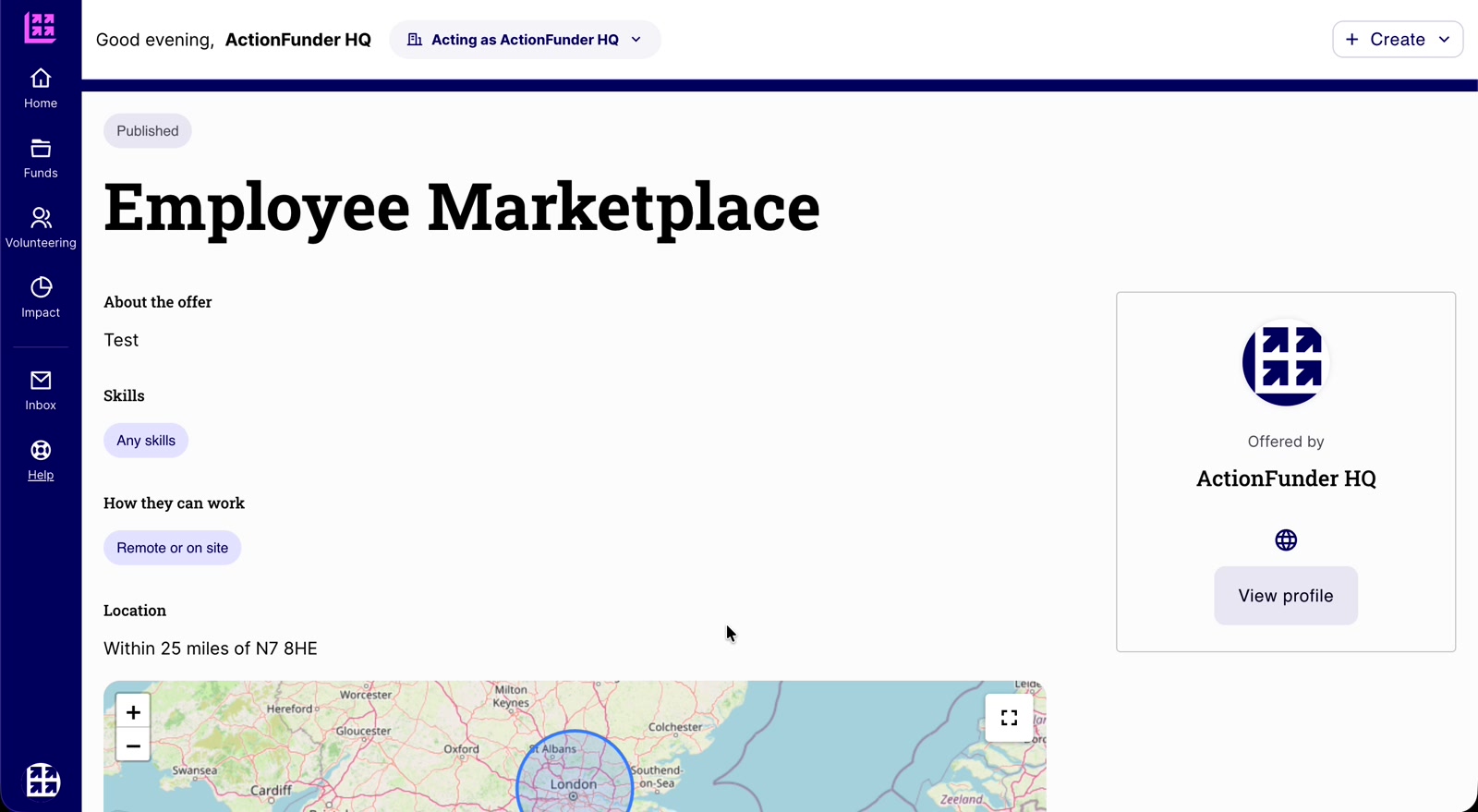
- After publishing you’ll see your offer page. This is what non-profits see.
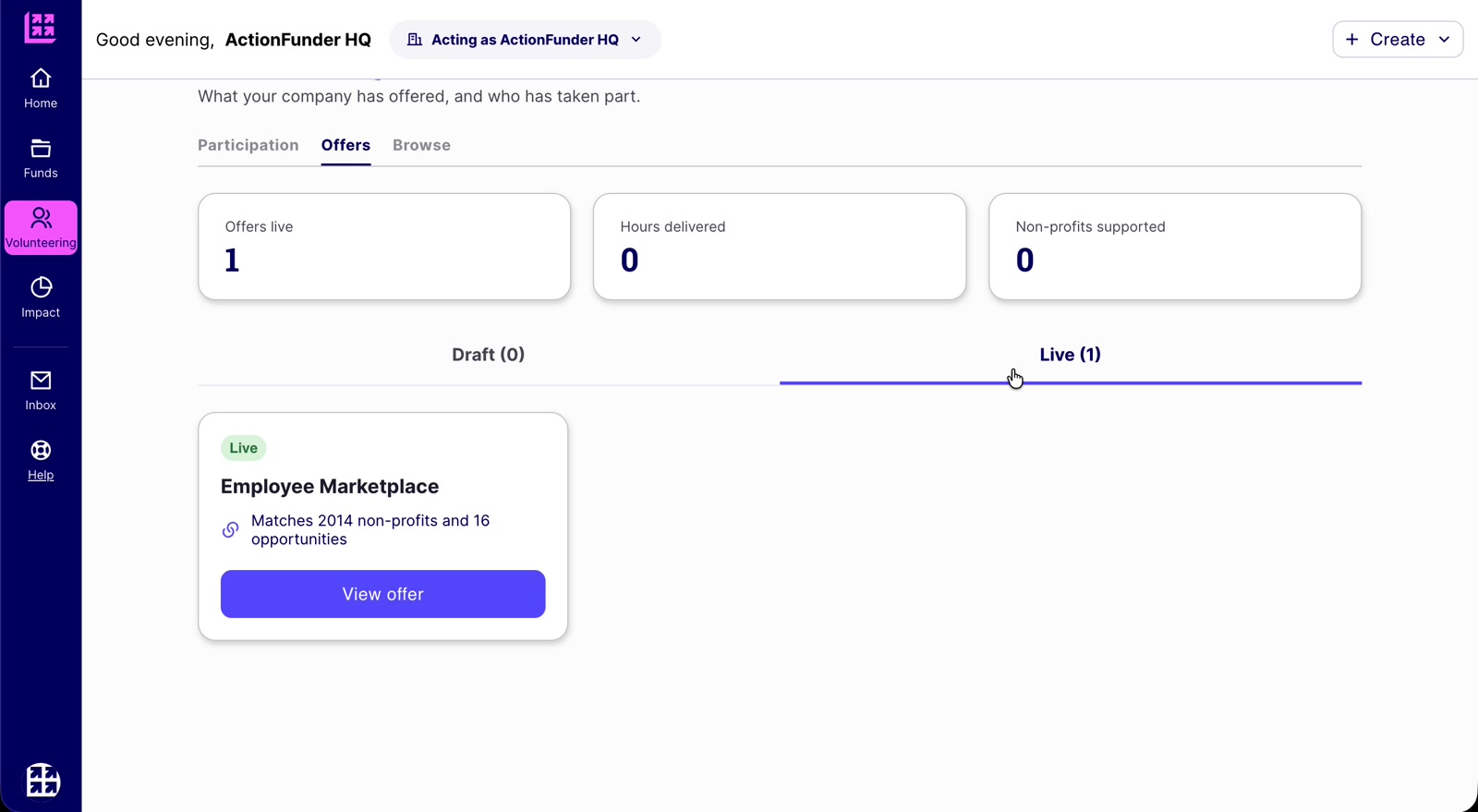
- Your offer now sits under Offers > Live, with the number of matching non-profits and opportunities.
7. What to expect from non-profits
If you chose to email matching non-profits, here’s what happens next.
- Every non-profit that matches your criteria gets an email with a link to your offer.
- They can create a new volunteering opportunity in response to it.
- New opportunities appear under Browse > Opportunities and in your employees’ marketplace.
- Allow up to two weeks for non-profits to respond.
- The more detail you give in your offer, the easier it is for non-profits to create an opportunity that fits.
- Not getting many responses? Email hello@actionfunder.org or your customer support contact and we’ll help promote your offer.