Watch: How to approve signups and message volunteers
Once volunteers start signing up to your opportunities, use this to approve them, see who’s coming, and stay in touch.
Where to find it
Select Volunteering in the side navigation, then open the Needs action tab. It lists every opportunity where a volunteer has signed up and is waiting on your approval.
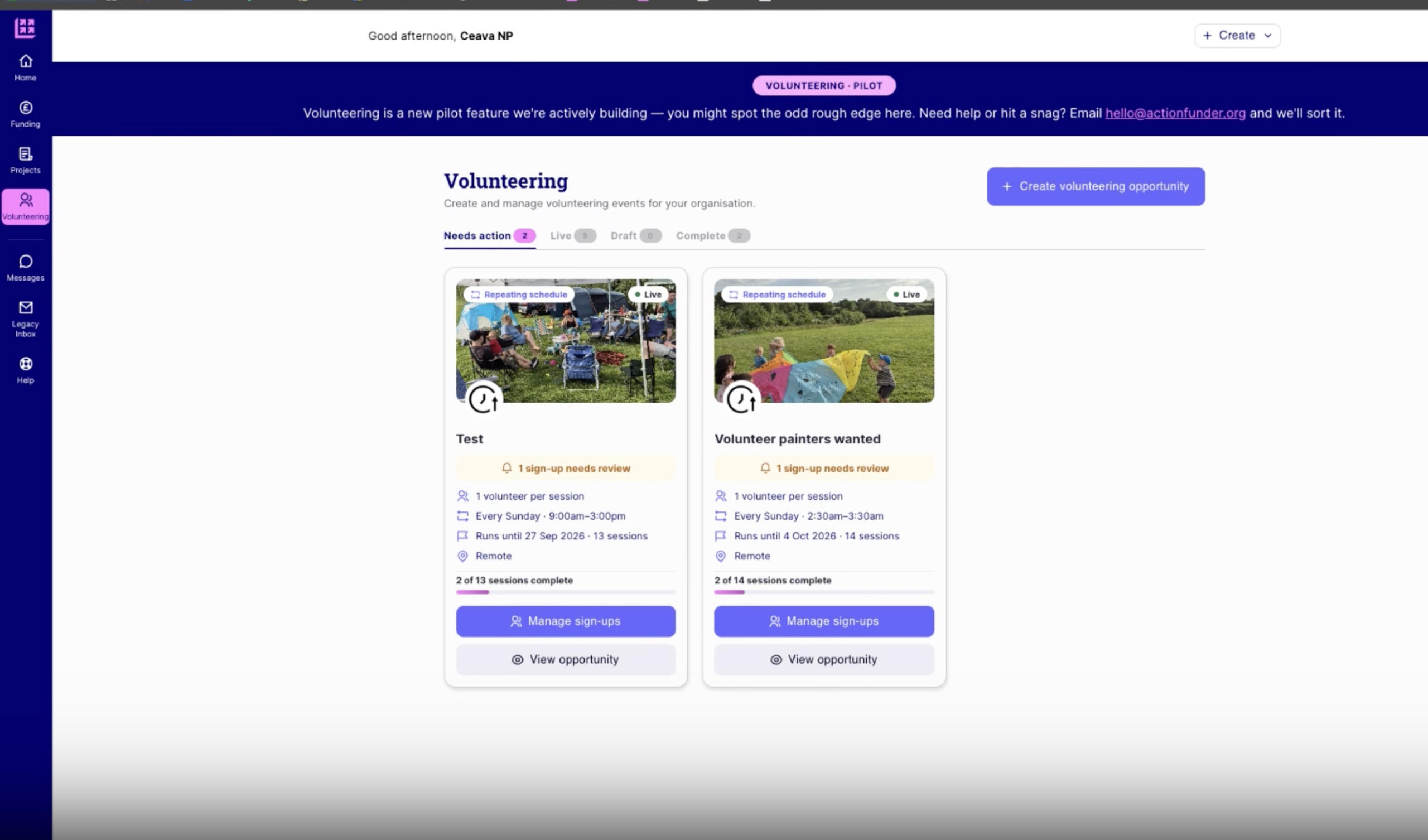
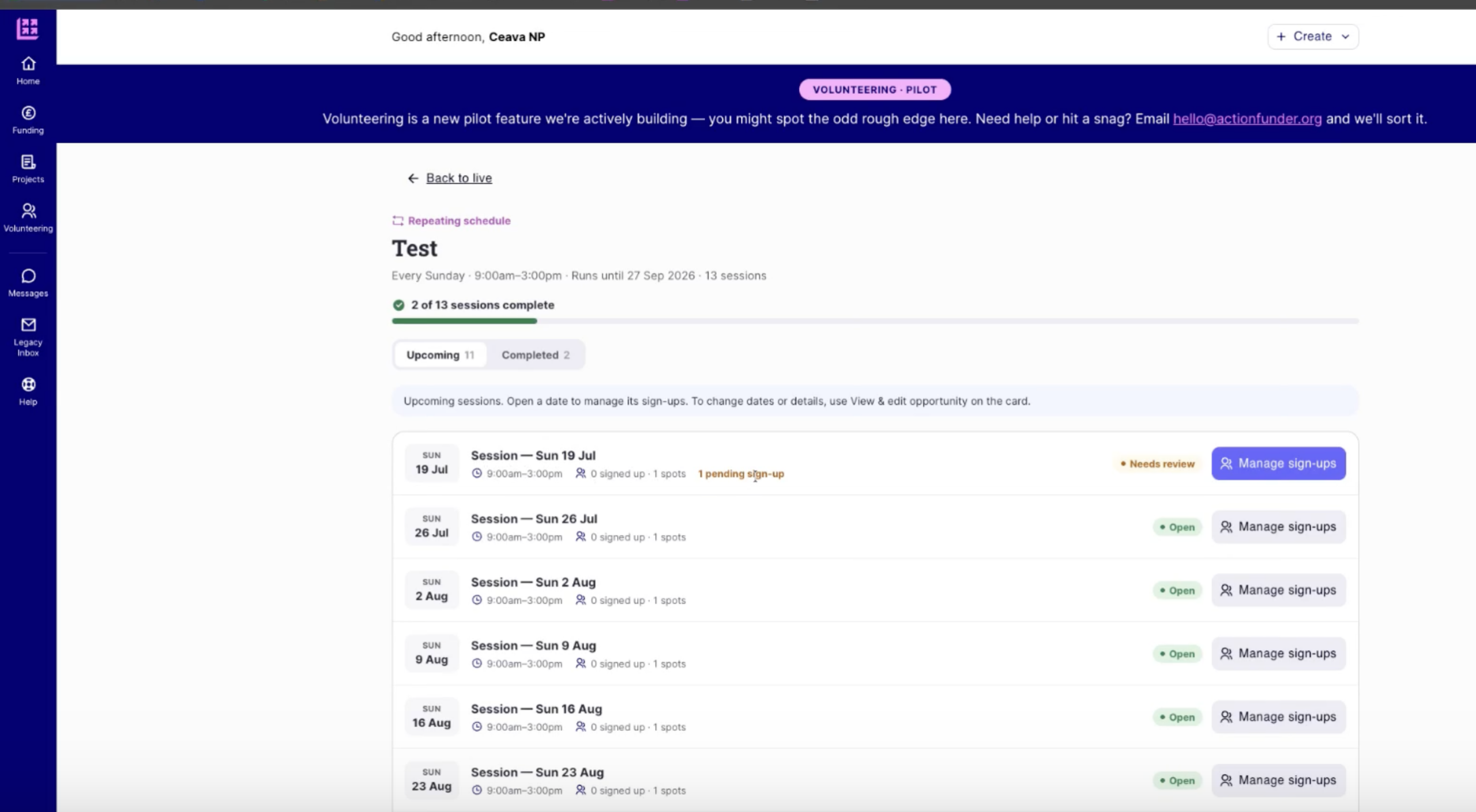
Select Manage sign-ups on an opportunity to see its individual sessions – each one shows how many people have signed up and flags any that need review.
Approving or rejecting a signup
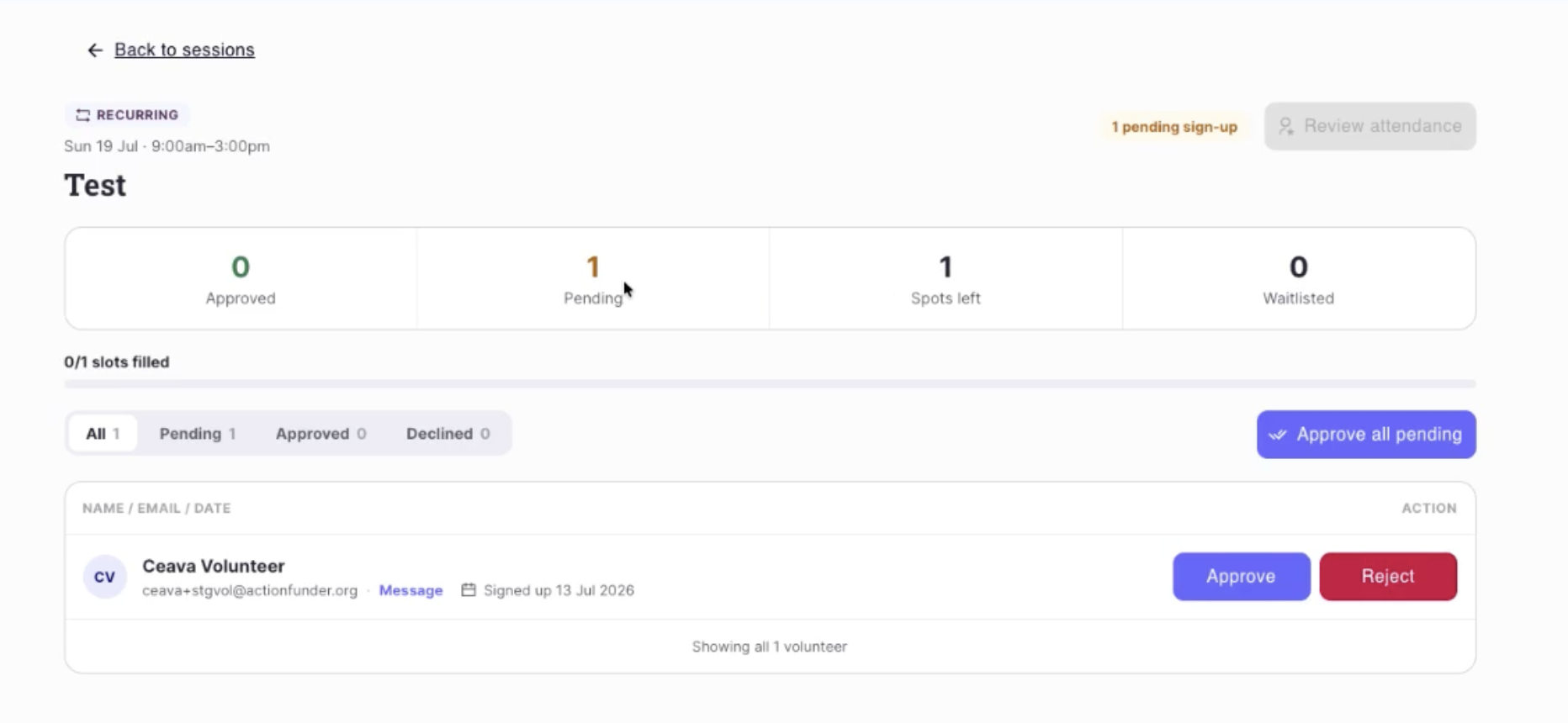
Before someone can volunteer with you, you need to approve their signup. Open a session and look at each pending signup:
- Select Approve if you can host them.
- Select Reject if you can’t — for example, the opportunity only needed one person and someone else has already been approved.
Approve or reject a signup at least a day before the session starts (or before its start time, if it has one) – if you don’t, the system automatically declines it for you.
Once you approve someone:
- They get an email confirming their registration.
- Their status updates in the platform to show they’re approved to join you.
Seeing who’s coming, marking attendance, and the impact survey
Once you’ve approved your volunteers, the same screen shows everyone confirmed – their time slot and, for corporate volunteers, which company they’re from.
After the event, use this screen to mark attendance, then complete the impact survey. This gets shared with the funder and the employee volunteers who took part, so it’s worth taking a bit of time over: a few images, an anecdote, or a few words that bring the event to life do far more to show a funder the value of your work than a bare set of numbers – and it’s what builds the relationship for next time.
Volunteers will also be prompted to complete their own impact survey, which is shared with you.
Messaging volunteers
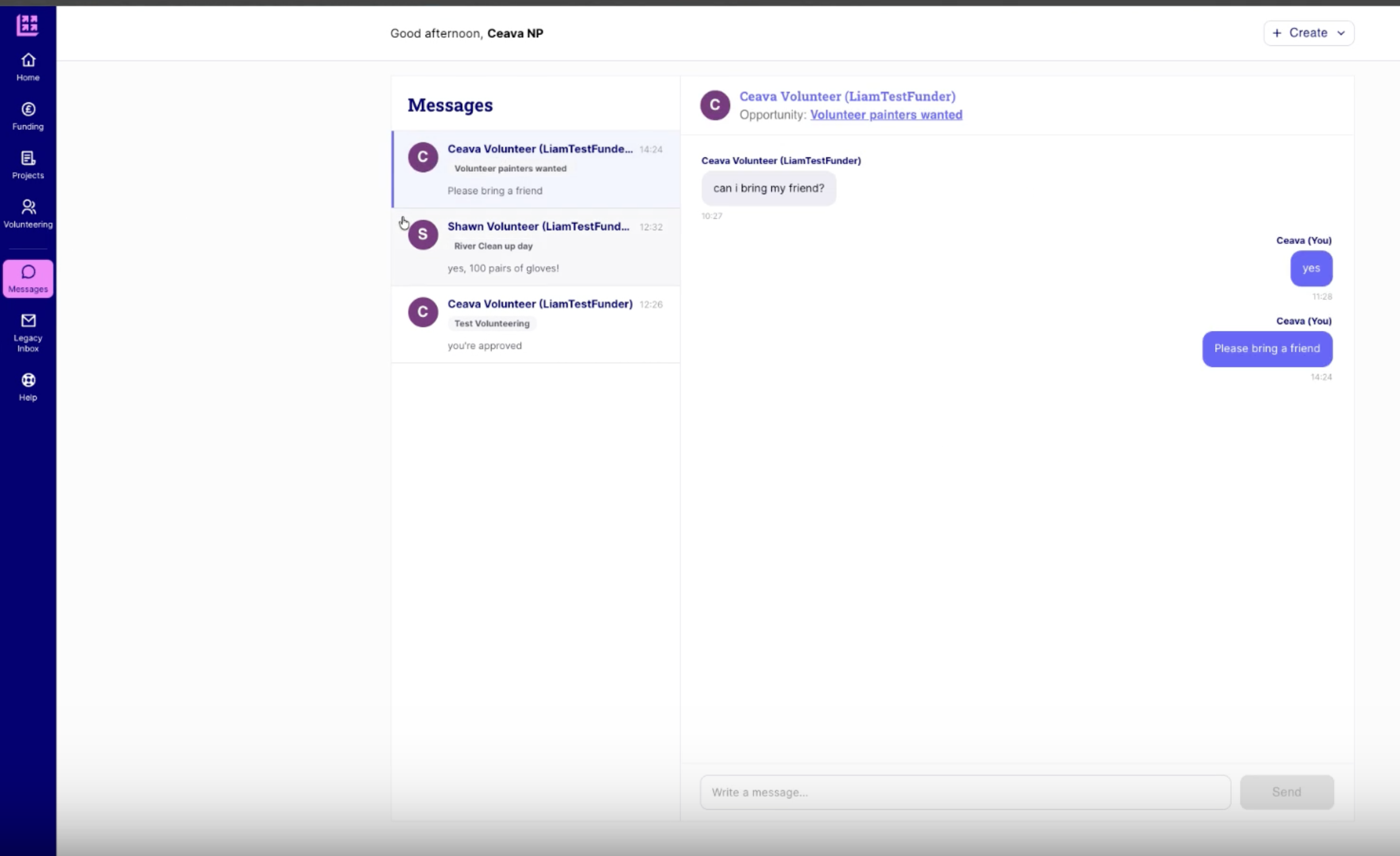
Select Messages in the side navigation to see anything volunteers have sent you – for example, someone asking if they can bring a friend, or wanting more detail before they book. You can also message a volunteer directly from Manage Signups once they’ve signed up.
Email notifications volunteers receive
Volunteers are kept in the loop automatically, so you don’t need to update them yourself at each stage:
- When they sign up.
- When you approve or reject their signup.
- When you send them a message.
- A reminder 2 days and 1 day before the event — sent to both you and the volunteer.
- After the event, a reminder to complete the impact survey, alongside your own attendance and survey reminders.
Staying on top of notifications
You don’t need to keep the tab open to stay on top of this:
- Once a day, you’ll get an email listing any new signups, or signups you haven’t yet approved or rejected.
- If a volunteer message goes unread for 30 minutes, you’ll get an email about that too.
- Every admin on your ActionFunder account receives these notifications, and any admin can come in and reply.
See also: Creating a volunteering opportunity · Update your profile with key information