Find opportunities from non-profits your company has matched with, and request the ones that suit you.
1. Browse & filter opportunities
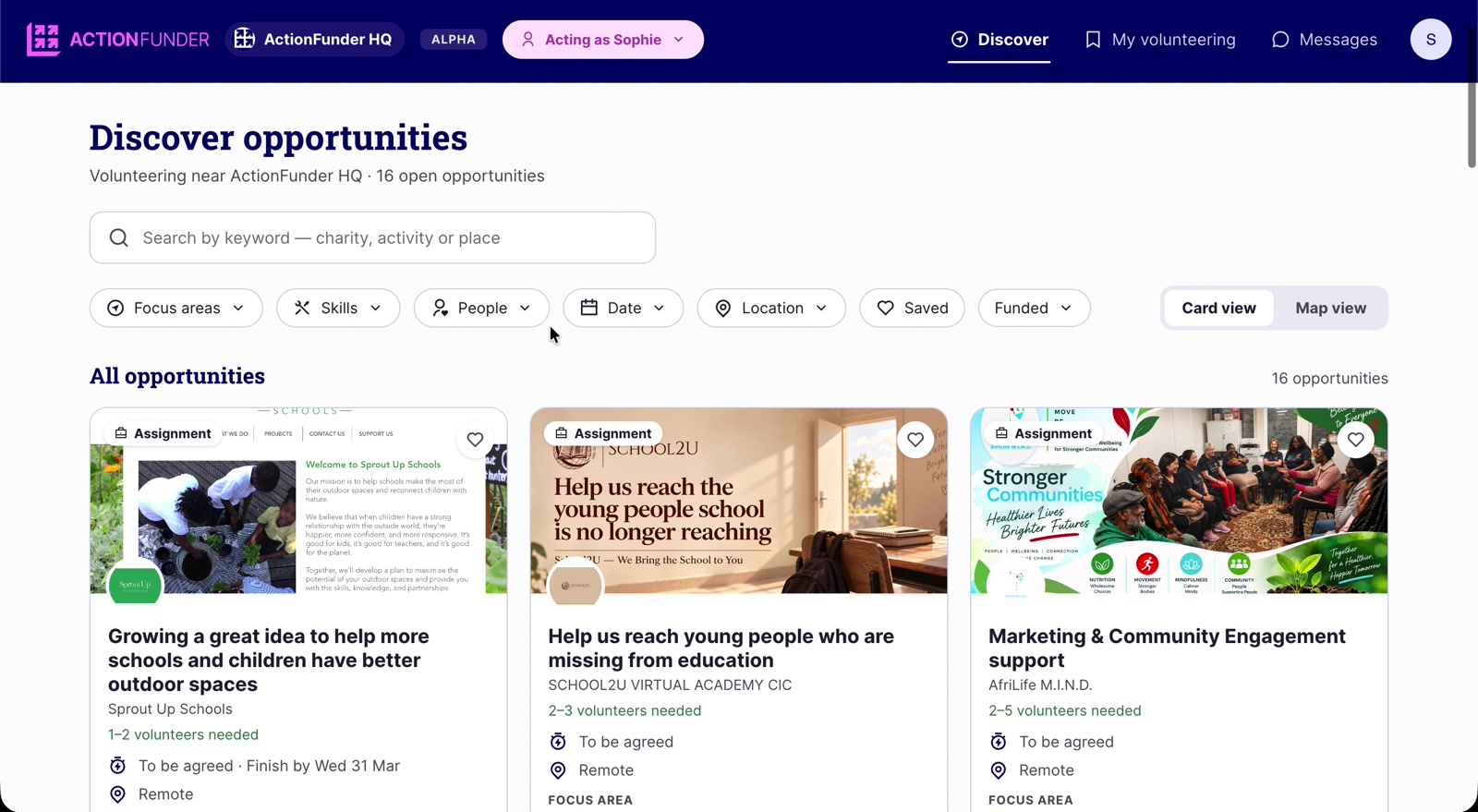
- Discover is the homepage for employees.
- Search by keyword, charity, activity or place.
- Filter by Focus areas, Skills, People, Date or Location.
- Click the heart on a card to save it, then use the Saved filter to find it again.
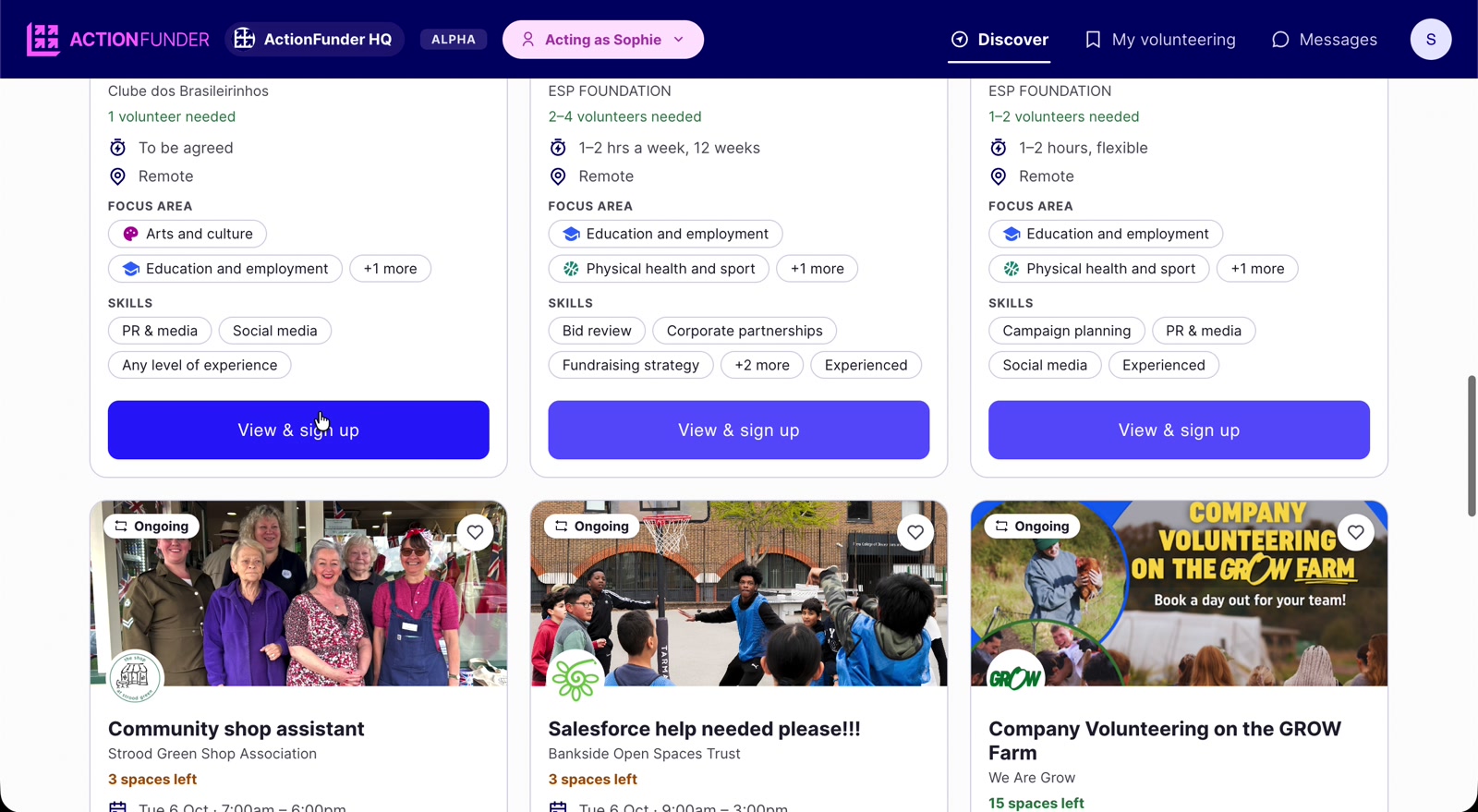
- Each card shows the time commitment, location, focus areas and skills, plus how many volunteers or spaces are left.
- Sort order: assignments show first, followed by date-based opportunities with the nearest sign-up date.
- Past opportunities aren’t shown here. Go to My volunteering to see past opportunities you’ve signed up to.
- For events, you can only sign up to dates at least two days in the future.
2. View an opportunity
- Click View & sign up on a card.
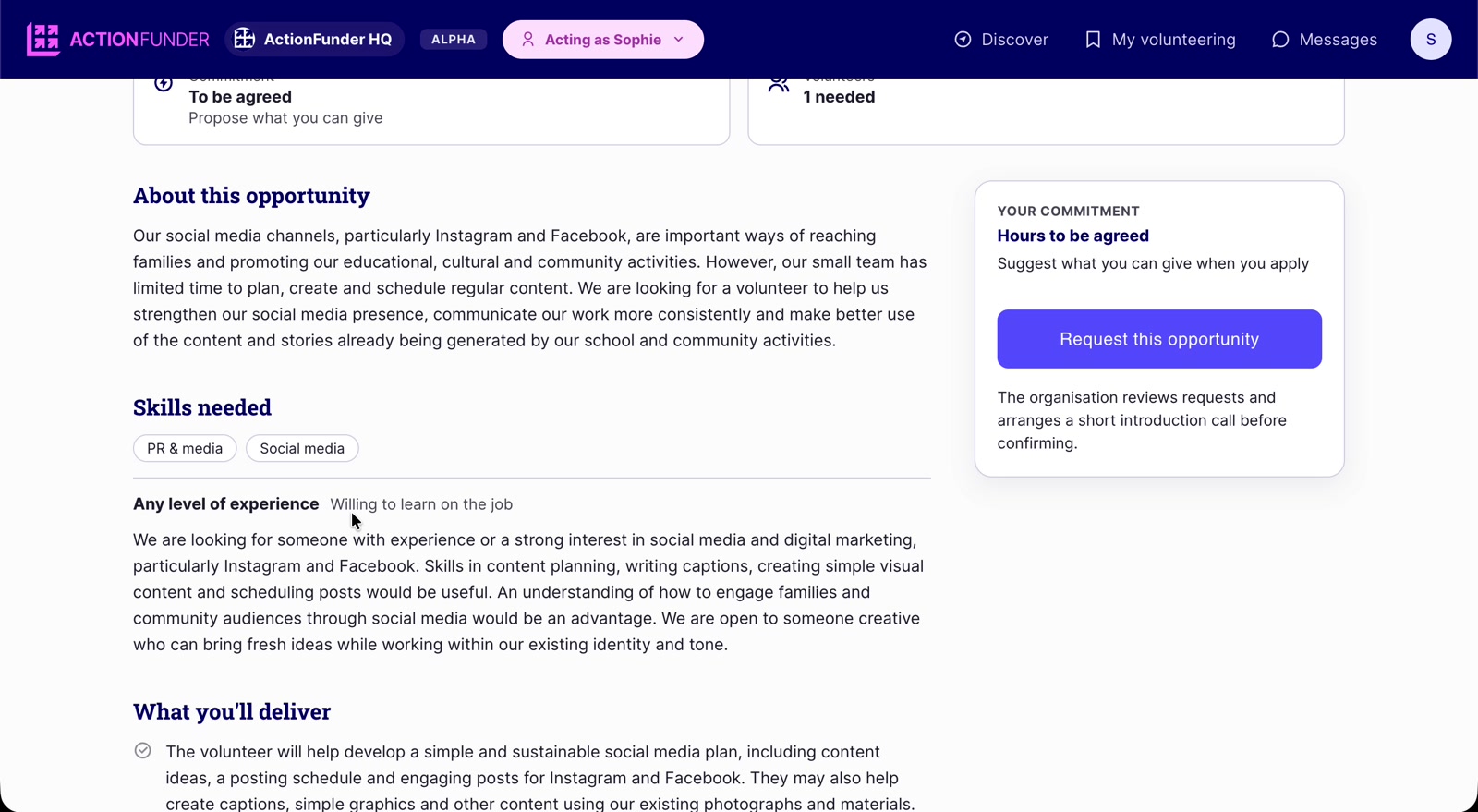
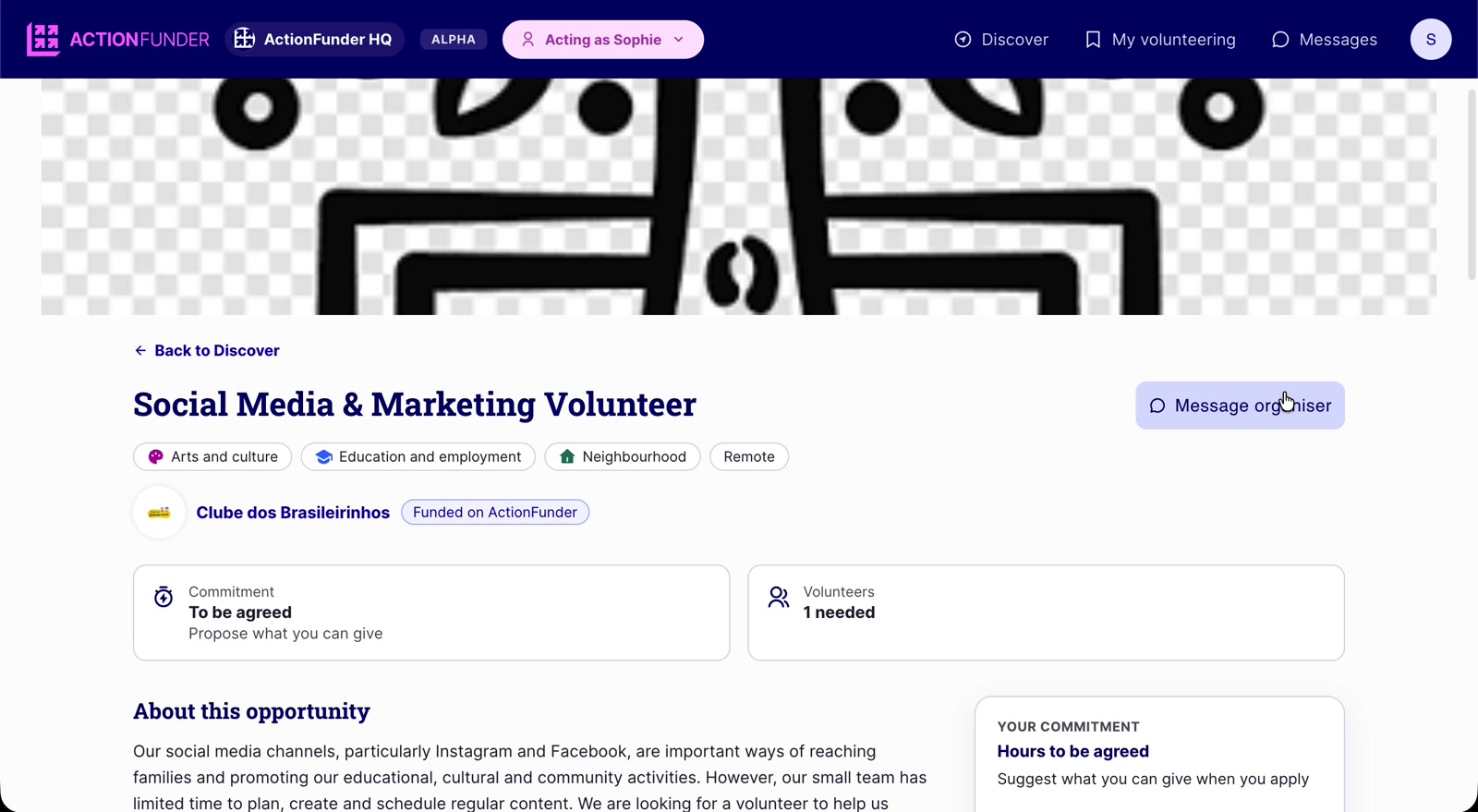
- Read what the non-profit has shared: about the opportunity, skills needed, what you’ll deliver and things to know.
- Got a question? Click Message organiser.
3. Request to join
- Click Request this opportunity. For events, pick a session and click Request [date].
- The non-profit is notified and approves or declines your request.
- Some organisers arrange a short introduction call first, especially for skilled work. This shows under Things to know.
- You’ll get an email once you’re approved.
- If the non-profit doesn’t approve your sign-up at least one day before the event, your request is automatically declined. You can message the non-profit if you still want to volunteer, or sign up to another date.