The fund management dashboard is your central hub for managing applications across each of your funds. Whether you’re reviewing a handful of applications or working through a long match list, everything you need to assess, organise, and progress projects is in one place.
Getting to the dashboard
From your funder account, navigate to Funds and select the fund you want to manage. Each fund has its own dashboard, giving you a focused view of the applications and their progress. Here’s an example of what a fund management dashboard looks like:
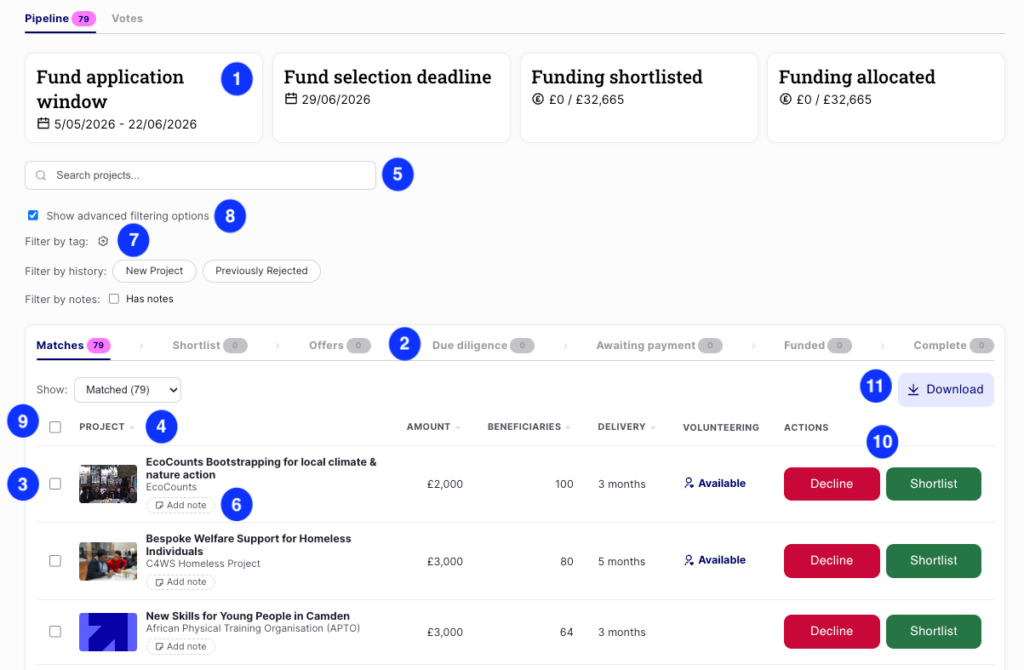
The numbers in this article correspond to the annotations on the image above, so you can find each feature at a glance.
1. Fund overview
At the top of the dashboard, four summary cards give you an at-a-glance view of your fund’s key details:
- Fund application window – the dates your fund is open for applications
- Fund selection deadline – your target date for making funding decisions
- Funding shortlisted – the total value of applications you’ve moved to shortlist, against your total pot
- Funding allocated – the total value of funding you’ve offered out, against your total pot
These figures update in real time as you progress applications through the pipeline.
2. Following the funding lifecycle
Applications move through a series of stages, visible as tabs across the dashboard:
Matches → Shortlist → Offers → Due diligence → Awaiting payment → Funded → Complete
Each tab shows the number of applications currently at that stage. Click any tab to focus your view on those projects only. This makes it easy to see what needs attention at each point in the process and track overall progress across your fund.
3. Reviewing applications
Each row in the application list shows:
- A project image and name, along with the applying organisation
- Amount requested
- Number of beneficiaries the project will reach
- Delivery timeframe
- Whether there is a volunteering opportunity attached.
Click on a project name to open the full application and read it in detail.
4. Sorting
Sort – order your applications by:
- Project name
- Project amount requested
- Number of beneficiaries
- Delivery timeframe
5. Searching applications
Use the search bar to find applications quickly by project name or non-profit name – no need to scroll through a long list. This is especially useful when you’re working through a large match list and need to jump straight to a specific project.
6. Adding notes
Each application has an Add note option directly in the list. Use notes to record your thinking, flag questions, or capture feedback from panel discussions. Notes are private to your team and stay attached to the application as it moves through the pipeline.
7. Tags
Create and apply customisable tags to keep your applications organised. Tags are flexible – use them to group projects by theme, location, priority, or anything that works for your review process. You can filter by tag to quickly surface a specific group.
8. Advanced filtering
Tick Show advanced filtering options to reveal three additional ways to narrow your view:
- Filter by tag – show only applications with a specific tag applied (e.g. a theme, geography, or priority marker). Click the settings icon to manage your tags.
- Filter by history – filter by whether an application is a New Project or a Previously Rejected one. This is particularly useful if your fund attracts returning applicants and you want to treat them differently during review.
- Filter by notes – tick Has notes to show only applications where a team member has added a note. Handy for picking up where you left off after a panel discussion.
9. Bulk actions
Select multiple applications using the checkboxes on the left, then apply an action to all of them at once:
- Shortlist – move a group of applications forward together
- Decline – decline multiple applications in one go
- Tag – edit tags to a batch of applications
Bulk actions save significant time when you’re processing a large match list. See more information here.
10. Funding Actions
Each application has two action buttons:
- Decline – mark the application as unsuccessful. The applicant will be notified.
- Shortlist – move the application into your shortlist for further consideration.
11. Download
At any stage, click the Download button to export the applications currently in view. Use this for offline review, sharing with panel members, or keeping records.
Need help?
If you have questions about your fund management dashboard, contact us at customersuccess@actionfunder.org.